Pull a variety of valuable resources and financial reports from the Jobs sections.
Where
Reports, available in the Jobs Section, are segmented into two areas: Time and Financials. Report options are available based on one's security setup.
Staff Time Reports
Traffic
This report option derives its information from project plans. Accordingly, you can ascertain what is assigned or not assigned by a variety of selection criteria. Options include any combination of the following: client, client contact, client division, specific job, client campaign, type of job, status (QUOTE, JOB, DONE, FILED), Account Executive, Project Director Team, Employee, Employee Department, Job Label1, Client Product, and/or Project Plan Task Status.
Sort by options include: client, contact, division, date due, job, task #, team, office, department, and campaign. Under Jobs > Reports (Staff Time), click Traffic.
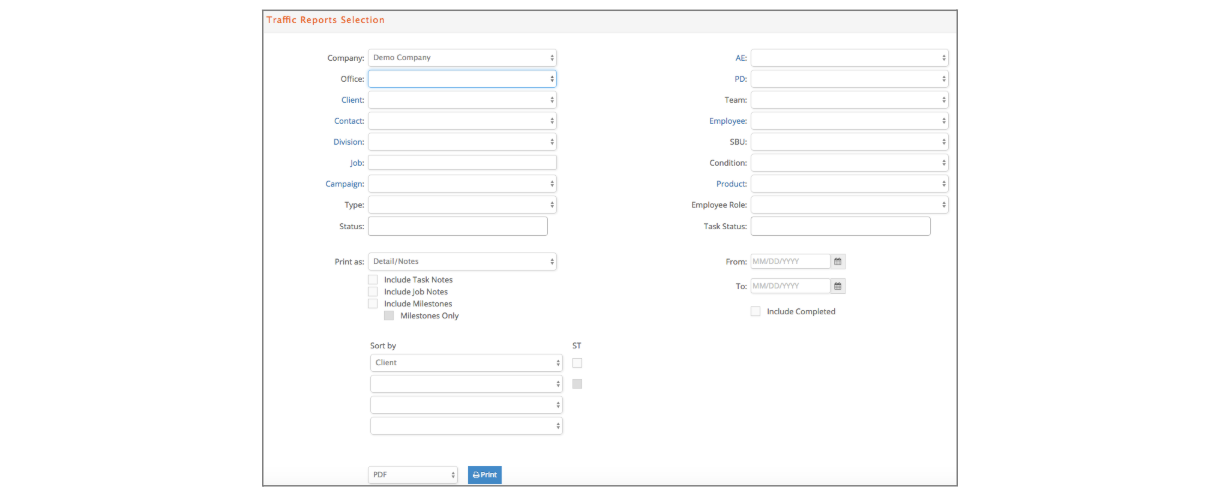
Print As options:
Detail/Notes lists all tasks for the selected time frame by job. You can sort by different sequences, but the details of the jobs will ALWAYS be sorted by task.
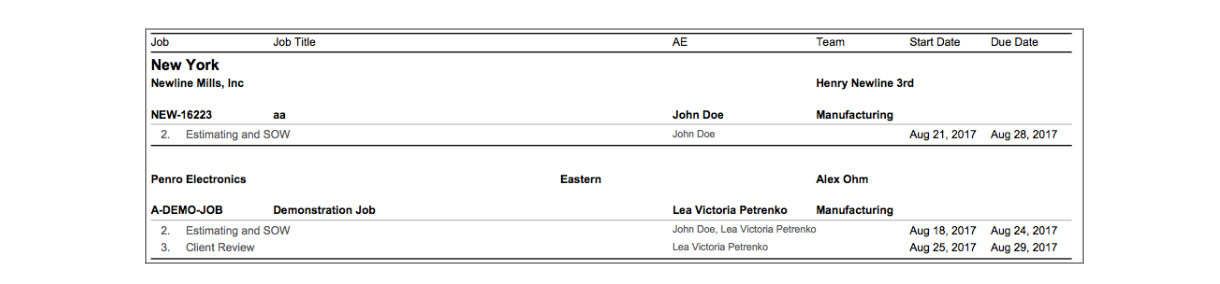
Detail List format lists assigned to, Job number, Job title, client, account executive, team, step, due date, and task assigned resource(s). This report is sometimes considered an organization's hot list – or what is due in the next few days.

Traffic Reports by Resource reports on traffic steps sorted by employee by default.

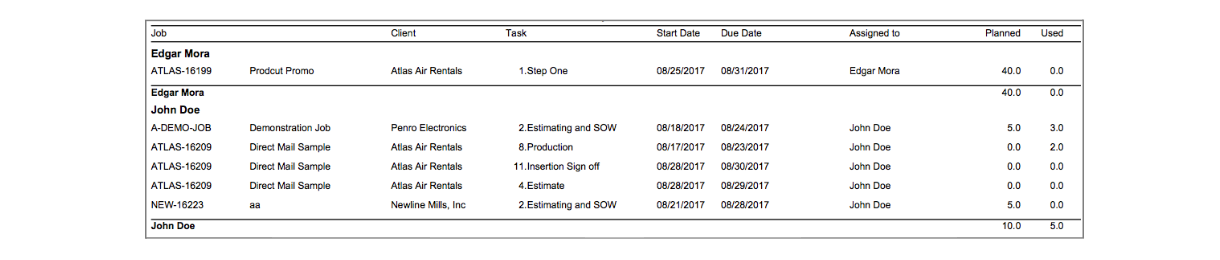
Planned vs. Used presents a comparison of hours used vs. hours planned by plan tasks.
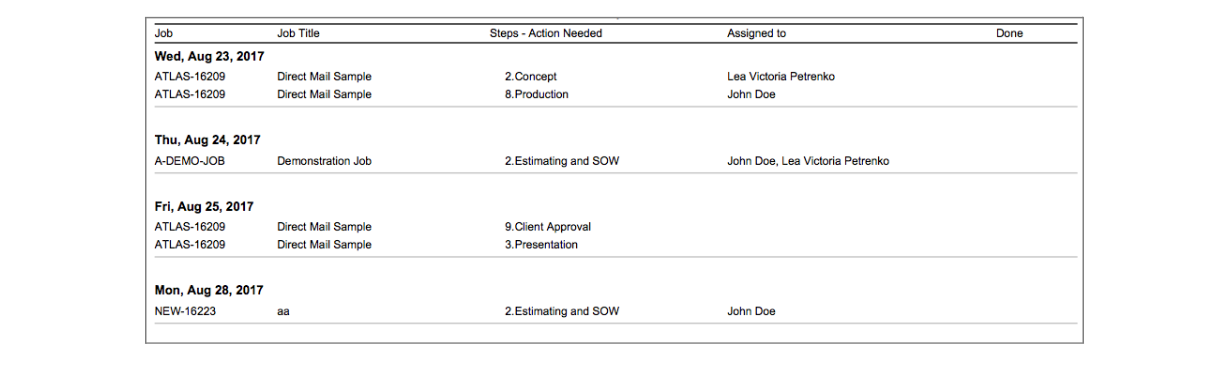
Day Timer format lists all the steps due each day, including Job number, Job title, step name, who is assigned to the step, and date completed if the step is done, and includes completed steps that are checked in the report selection window.
Calendar format displays a calendar with steps displaying on the date due, including the Job number, step name, and who is assigned to the step.

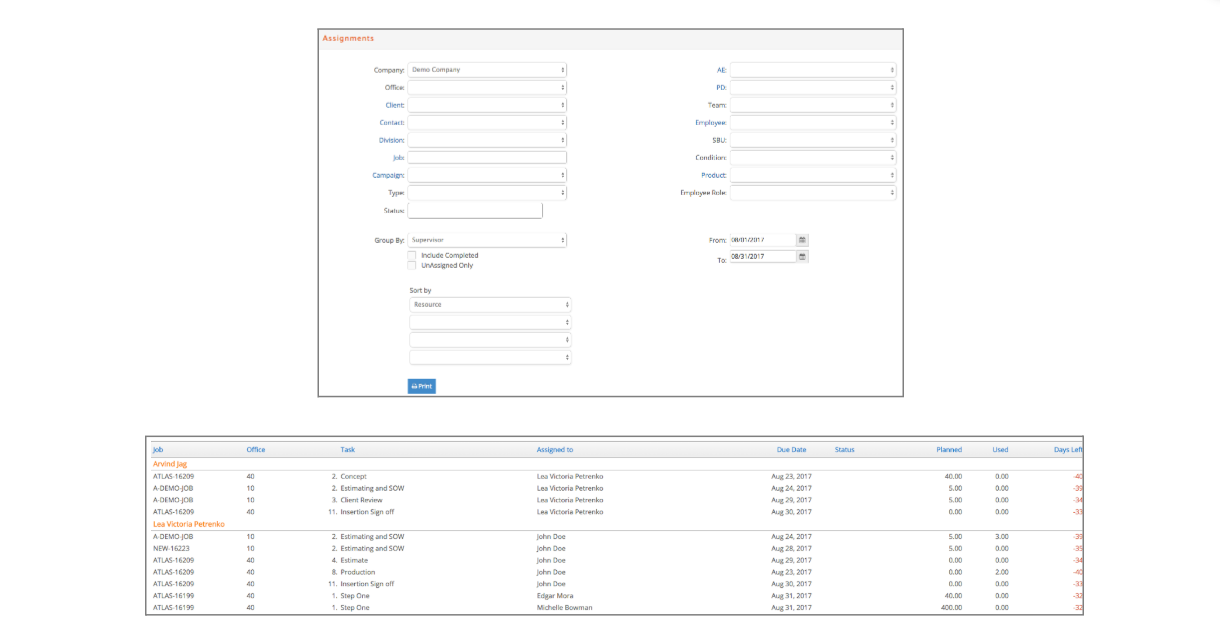
Assignments
This report is similar to the Planned vs. Used in the above Traffic reporting window. However, the report itself provides additional sorting options: Employee supervisor, Account Executive, and Project Director. Under Jobs > Reports (Staff Time), click Assignments.
Staff Availability
This gives a report based on traffic assignments of when employees are booked or available, depending on which format you select. Under Jobs > Reports (Staff Time), click Staff Availability.
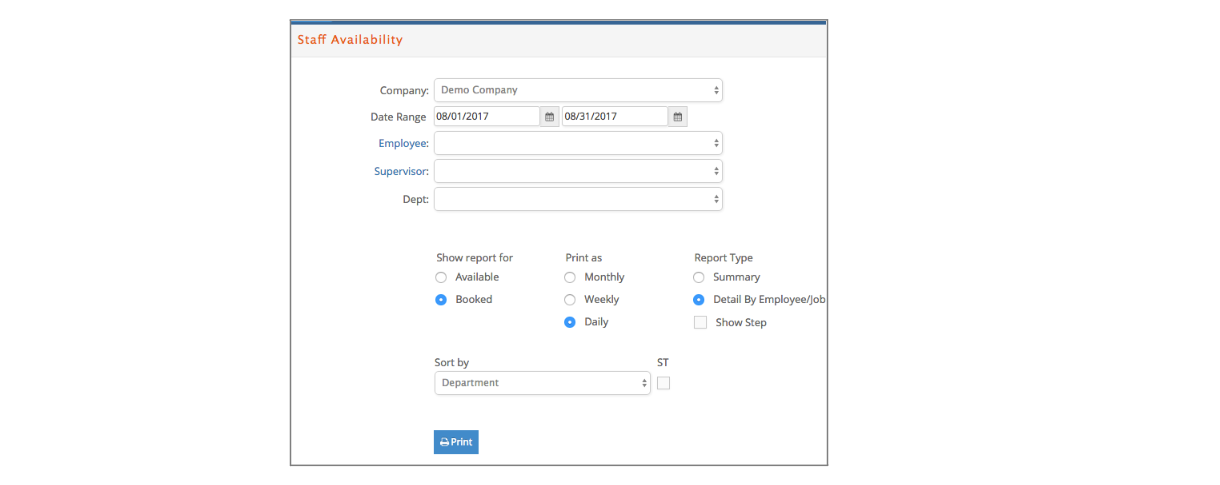
The information on this report is derived from not only the plan task assignments, but also the hours that are assigned to each person on a day-by-day basis. Thus, there are two key reports:
Booked. Who and how many hours are assigned to individuals on a daily, weekly, or monthly basis?

Available. Who and how many hours are 'free' (not assigned) on a daily, weekly, or monthly basis?

Charges
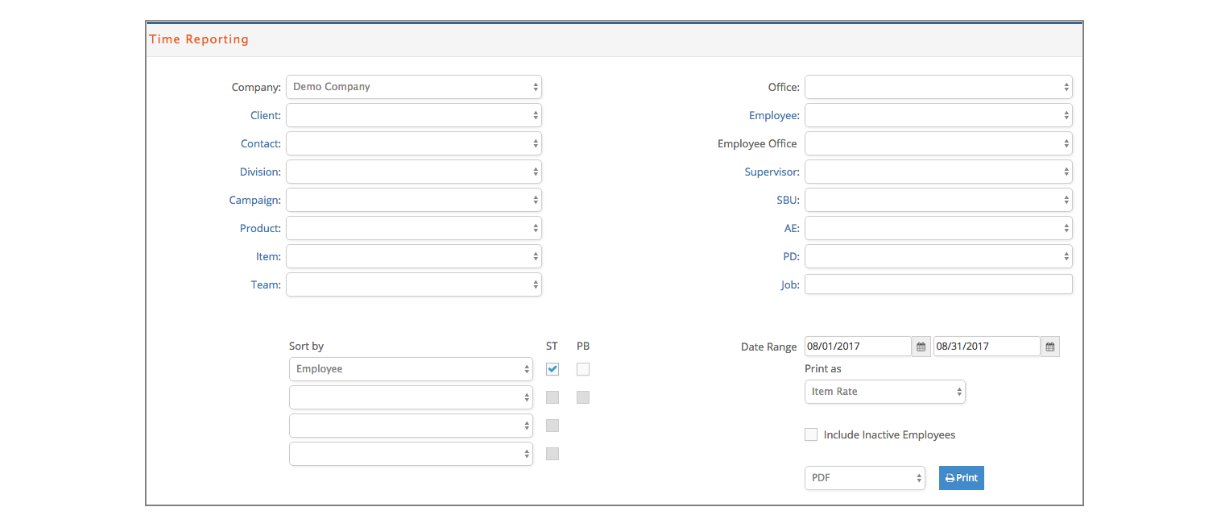
This is the reporting window where you can view time charges in detail – who entered what, when, to what job, and what they did he/she do and said about his/her work. This is the purpose of the Detail Report.
Two additional reports are provided: Summary and Item Rate. Summary reports a synopsis of charges entered by myriad options: client, resource, office, department, etc. The last report, Item Rate, summarizes and reports on the average rate for an individual based on the service performed for any client and/or job.
Selection options are extensive. They include: client, client contact, client division, client campaign, client product, item, team, office, employee, employee office, supervisor, department, Account Executive, Project Director, and/or a specific job.
Sort by options include client, date, department, division, employee, item, Job, or team. It can also be run in summary or detail format. Under Jobs > Reports (Staff Time), click Charges.
The date range is required.
Time Billed
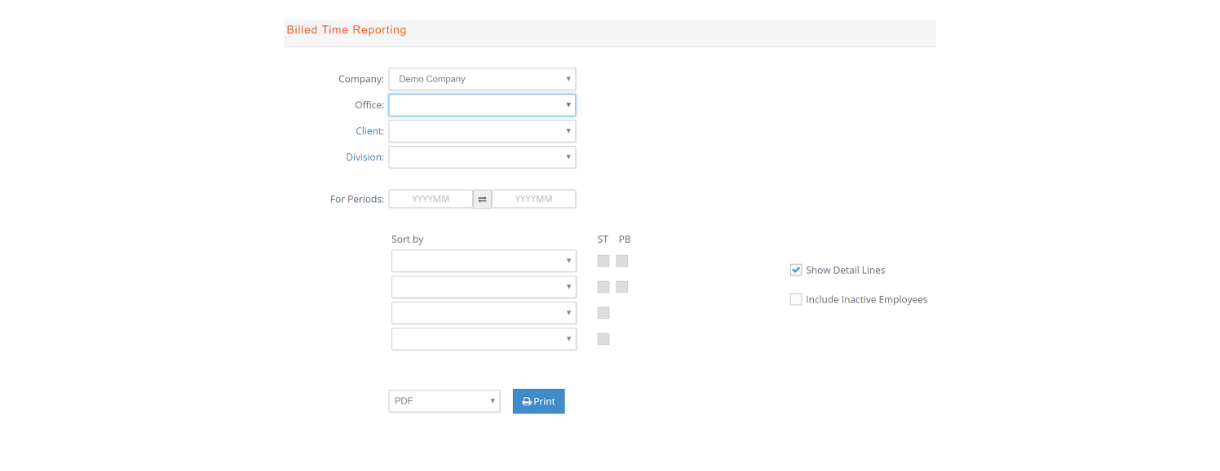
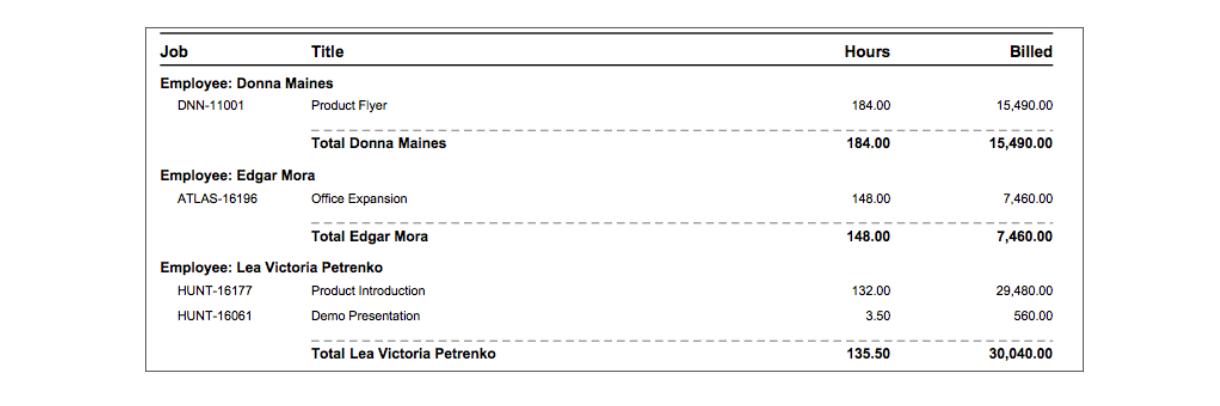
This is a report of time charges that are billed and posted in a specific fiscal period or range of fiscal periods. The hours billed and the value of the billings are presented.
Under Jobs > Reports (Staff Time), click Time Billed.
Hours Analysis
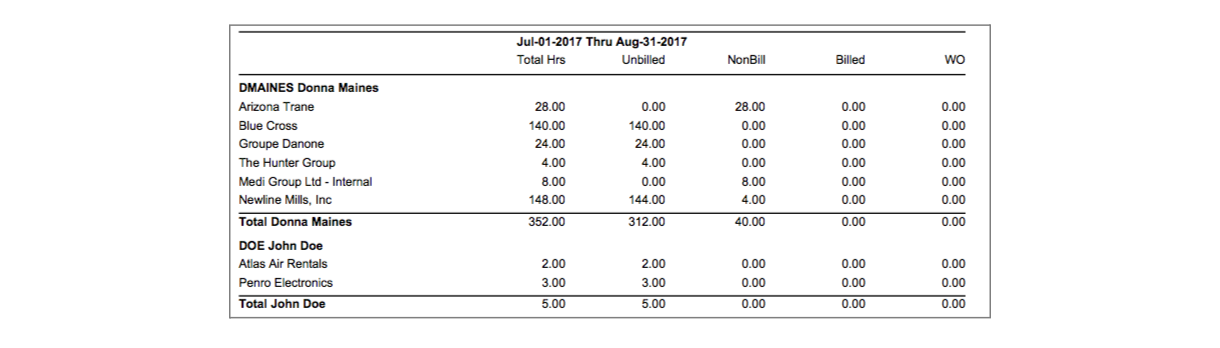
This is the report that you can view in a succinct fashion; the disposition of time charges entered. Did you bill them? Are they still unbilled? Are they written off or non-billable?
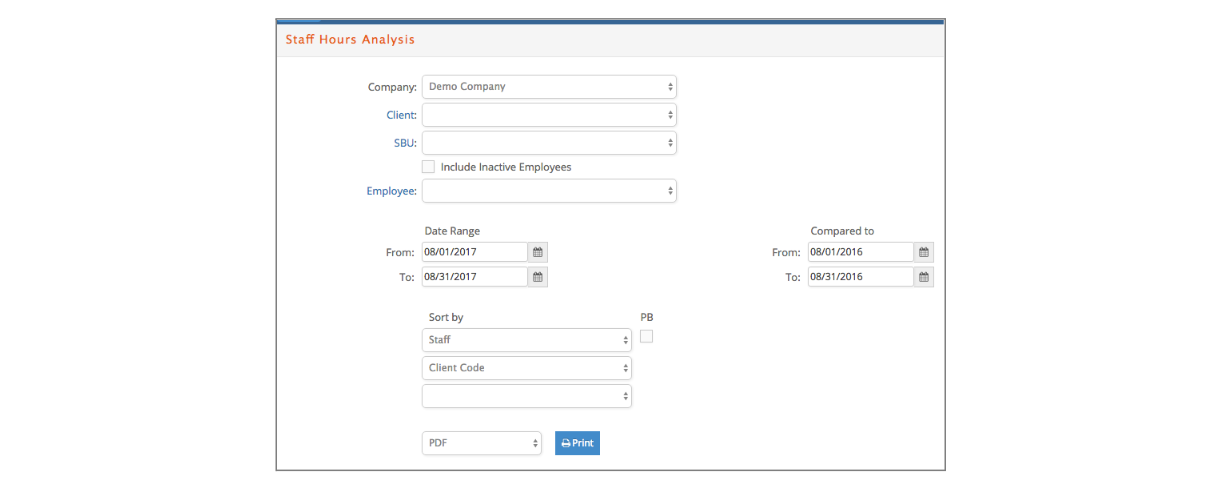
A Date range is required. You can also enter a comparative date range. Thus, you can view how we did in this time frame vs. another. The report displays total, unbilled, non-billable, billed, and written-off hours for each date range.
The report can be run for a selected client, employee, and/or employee department. Sorting and subtotaling options include: client, client/staff, staff, staff/client, staff/client/Job, department, or department/staff. Under Jobs > Reports (Staff Time), click Hours Analysis.
Utilization
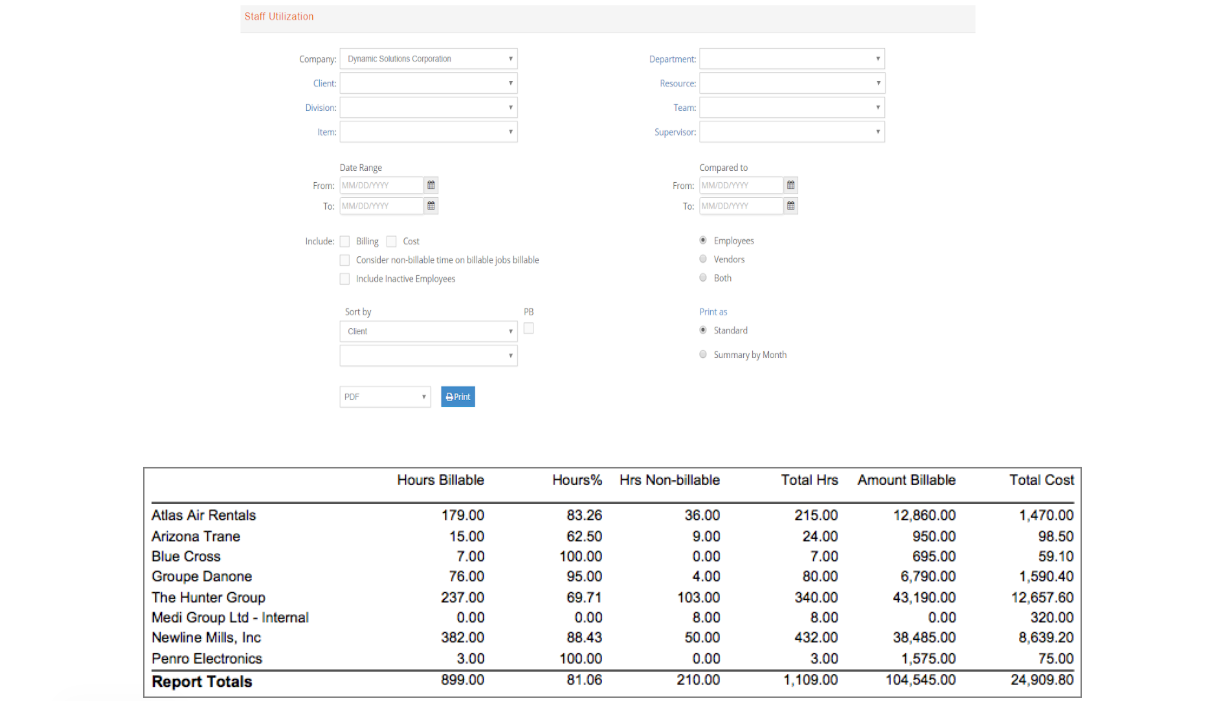
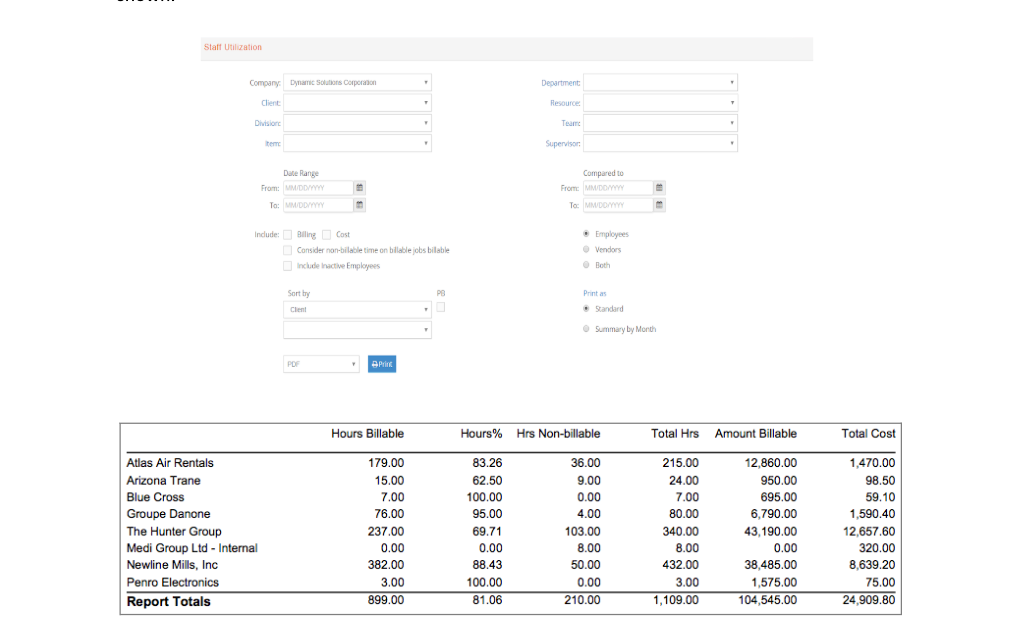
This report is a variation of the previous report, Hours Analysis. The focus is the same: on the hours entered, what is billable vs. non-billable. What % is billable, and what is the dollar value of billable?
Depending on the report selections, staff utilization gives a report of hours billable, hours percent, hours non-billable, total hours, amount billable, and total cost for two comparative date ranges. Under Jobs > Reports (Staff Time), click Utilization.
Productivity
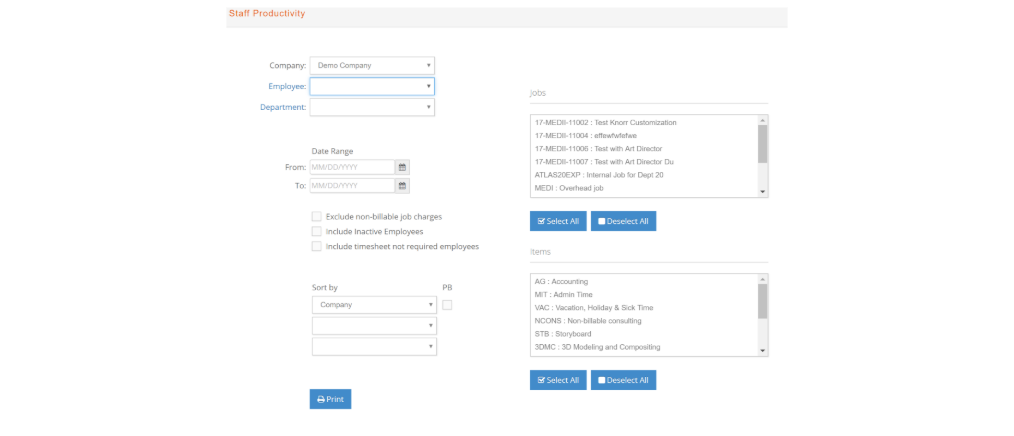
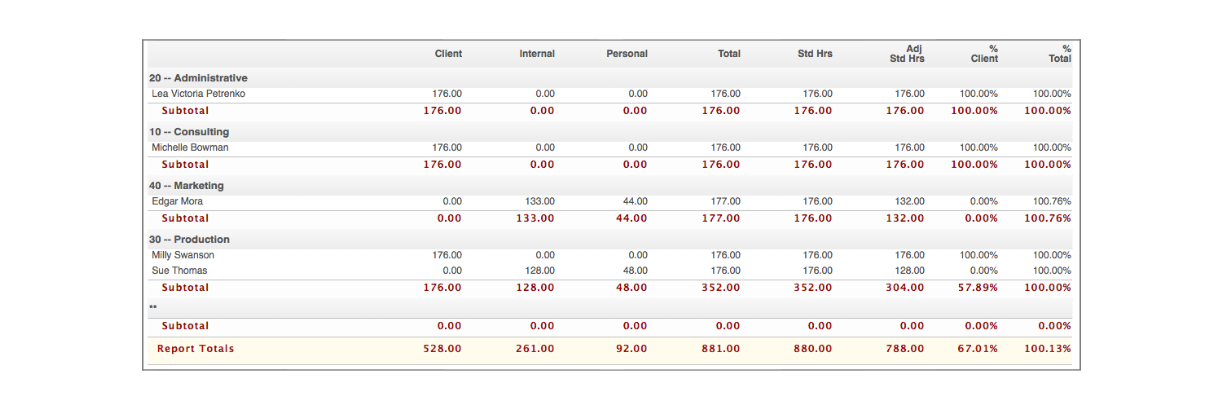
These reports provide a quick assessment of how productive your company is on an associate-by-associate basis. In other words, of the hours reported, what % of hours is spent on client work (billable and non-billable)? This translates to revenue!
This is run for a date range and lists client, internal, personal, total, standard, and adjusted standard hours, % client, and % total for all or selected employees, departments, or companies, and can be sorted by company, department, or supervisor. Under Jobs > Reports (Staff Time), click Productivity.
Time Card
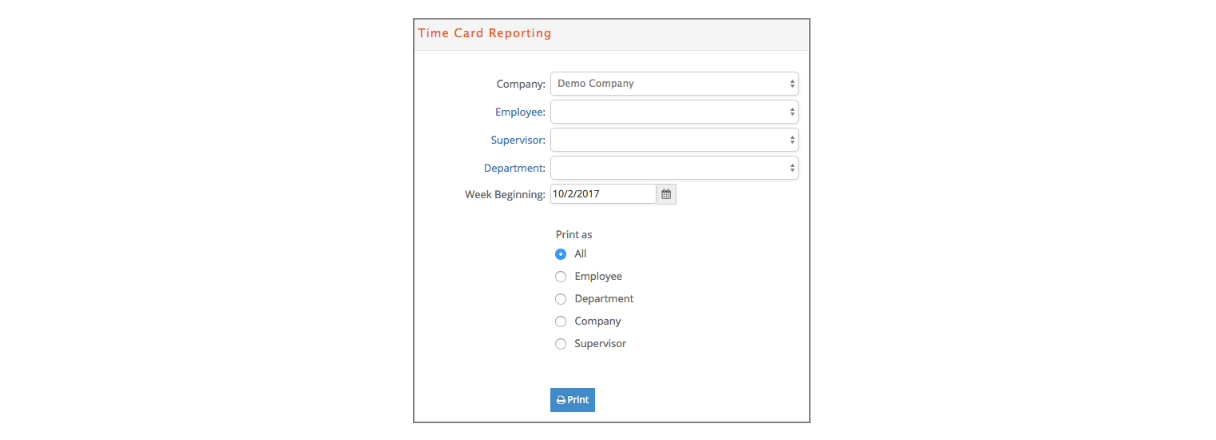
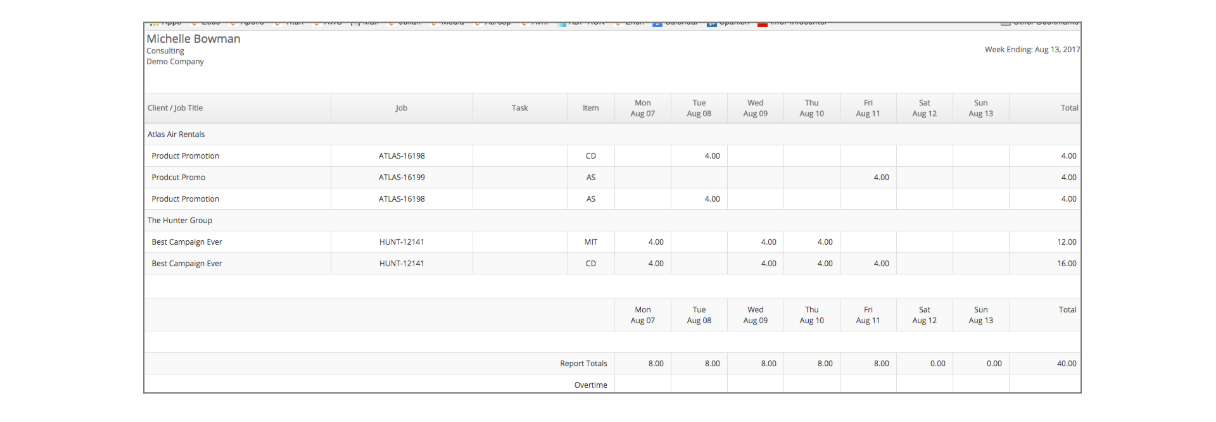
This can be run for selected or all employees, departments, companies, or supervisors. The week beginning is required. The report displays a summarized time card including client, Job title, Job number, item, date, and total hours by item for a Job and day. Under Jobs > Reports (Staff Time), click Time Card.
Generally, this option is for those employees where overtime can earn overtime but must be approved and signed by a supervisor.
Delinquent
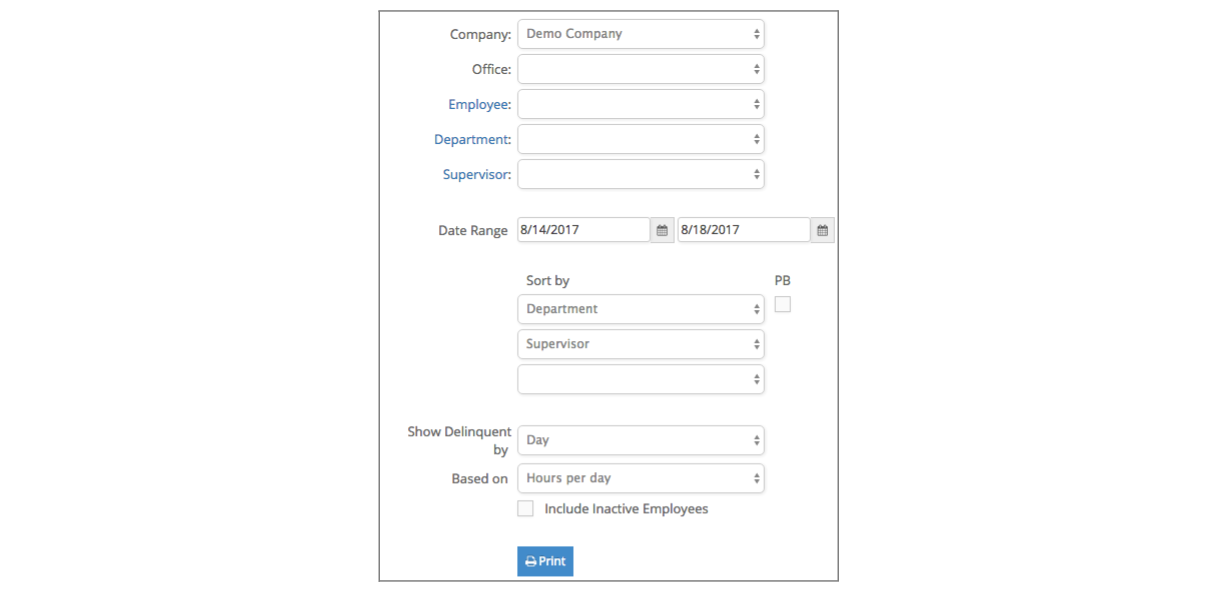
This enables you to run a report of employees who have not entered their required number of hours per day set on their employee record for a date range. The time sheet required must also be set on their employee record.
The report can be run for selected or all employees, departments, companies, offices, or supervisors. Sort by options include company, department, supervisor, employee code, or name. In addition, it can be displayed by day or week. The report displays employee code, name, department, company, supervisor, date, hours entered, and hours missing. Under Jobs > Reports (Staff Time), click Delinquent.

Time Sheets - Monthly
This report is a more interactive, Monthly Staff Time Report, which is located at Jobs > Reports (Staff Time) > Time Sheets – Monthly. The monthly view, with weekly totals, can be changed by selecting different time criteria, then clicking ‘Submit’.
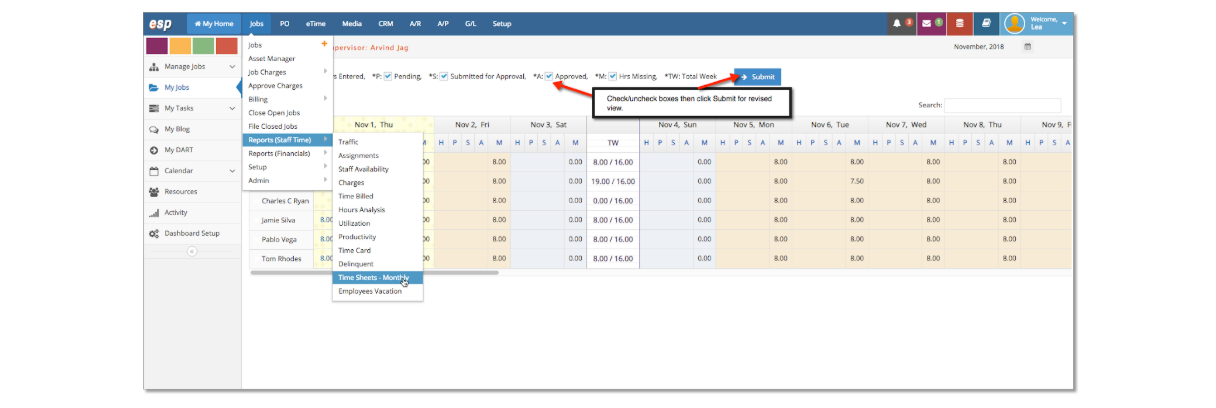
Report Legend:

Financial Reports
The following discusses the reporting options that are more of a financial nature in the Jobs Section.
Work in Process
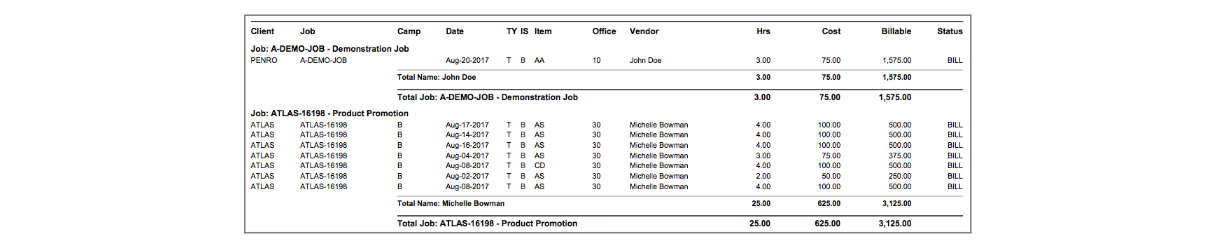
This gives you a report of billable charges that have not been billed to the client yet. It is the sub-ledger for production vendor invoices posted to billable jobs and the work-in-progress account. It can also act as the sub-ledger for charges (time, internal, and external where revenue was earned before the charges were billed (See General Ledger documentation of the Earned but Unbilled Revenue discussion.
Under Jobs > Reports (Financials), click Work in Process.
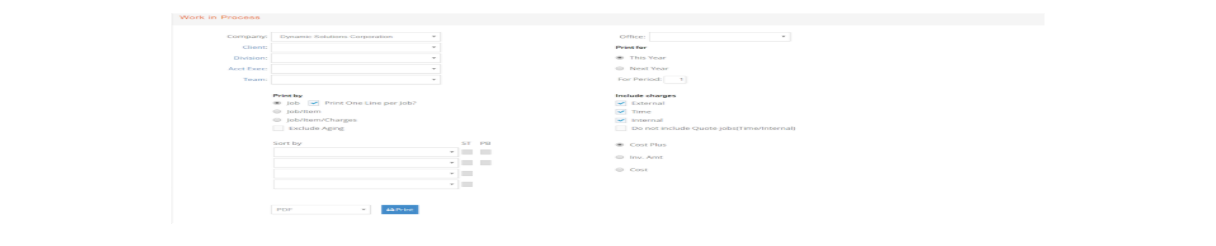
One of the four report formats is available to print from this window.

Job Charges
This reporting option allows you to bring in and present any combination of charges: time, external, and/or internal. This window provides an incredible amount of selection choices – by client, client contact, client campaign, client product, to name a few!
You can also select a timing option: Do you want to retrieve based on a posting period of the charge(s) or the charge (s) transaction date?
If you are using e-silentpartner's media feature, you can elect to include transactions related to media jobs, non-media jobs, or both!
Lastly, you can decide whether you want to view charges from all types of jobs or a combination of billable, non-billable, and/or internal jobs.
When printing, we also offer options to show what you want. E.g., show client product rather than client campaign, show cost, show the invoice amount rather than the default cost +.
Please review this window in detail, as the list of possibilities is endless!
Two report formats are included: Grouping by Job/Item or …

Generate a list of matching transactions with the presentation based on your sort preference.
Advance Billings
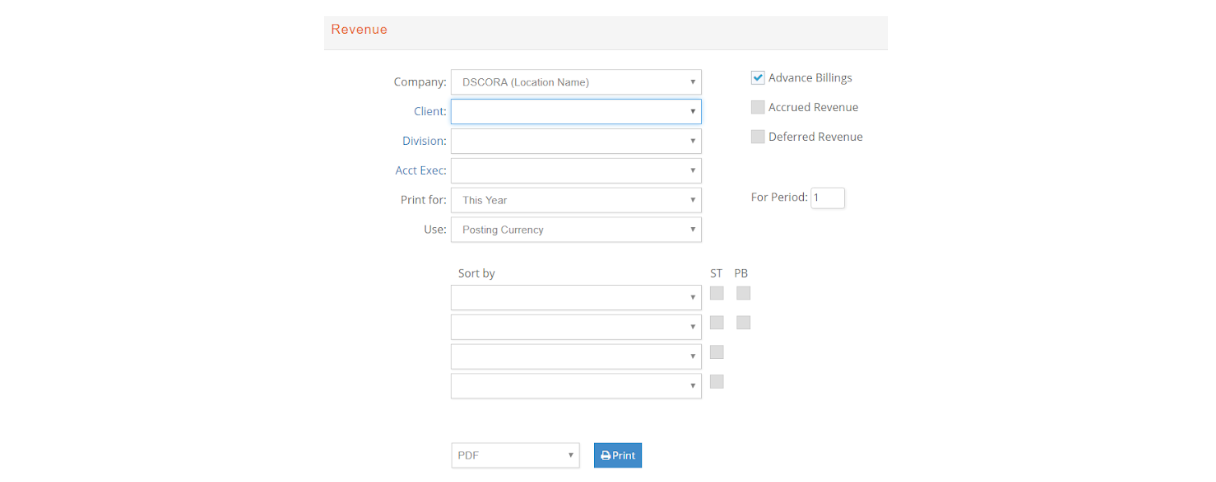
This reporting window provides three sub-ledgers: Advanced Billings, Accrued Revenue, and Deferred Revenue. Advance Billings balances come from Jobs that generated an advance bill invoice and subsequently cleared via a non-advance bill invoice.
Accrued and Deferred Revenue Balances come from the financial impact of journal entries created via the Accrued Revenue Journal Entry creation. Review the Accounting of e-silentpartner to understand the effect of these journal entries. Under Jobs > Reports (Financials), click on Advance Billings.

Write-Off
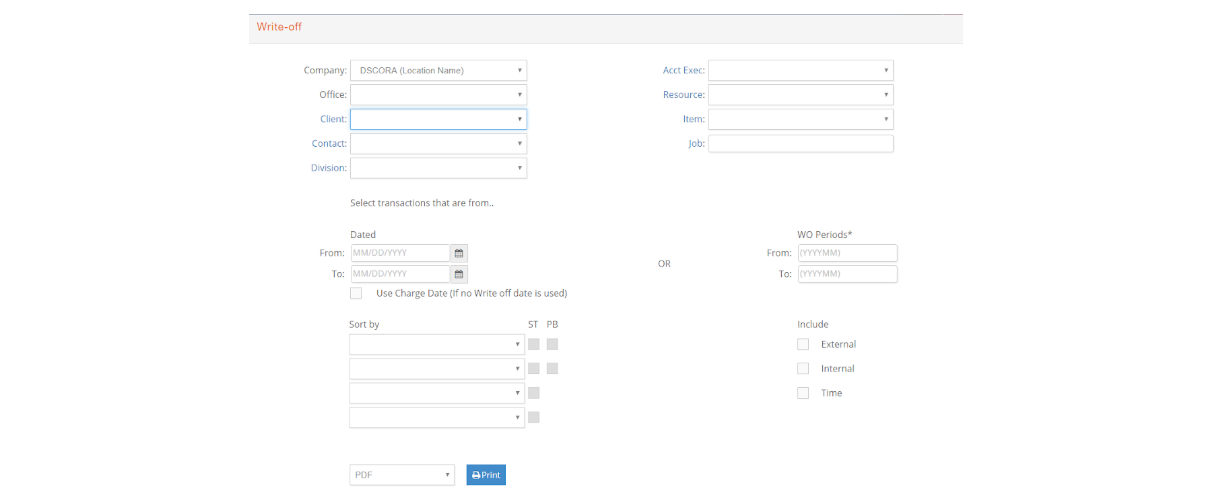
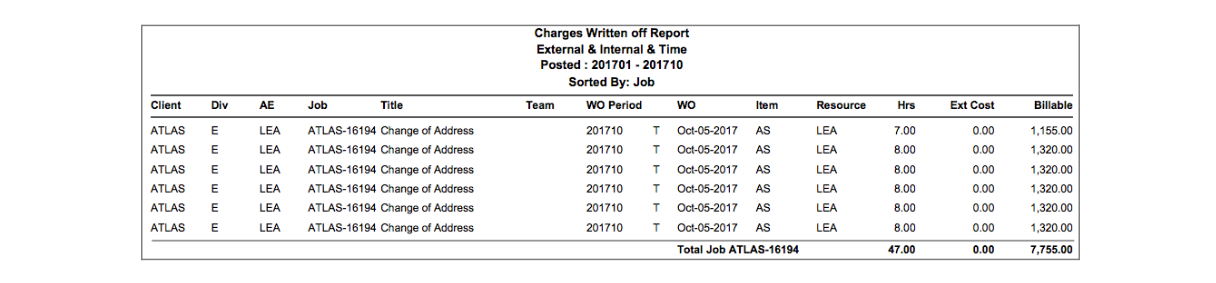
This gives a report of charges that have been written off based on specified criteria. Keep in mind that the write-off of certain types of charges can create a journal entry. The write-off of an external charge always creates a journal entry. Write off of any charge in which revenue was recognized using GL > Earned But Unbilled Revenue will always create a journal entry. Under Jobs > Reports (Financials), click on Write-Off.
Projected Revenue
As described in the Jobs Section, you have the ability to define projected revenue for a project.
The projected revenue schedule can be used to generate journal entries to recognize revenue on a needed basis.
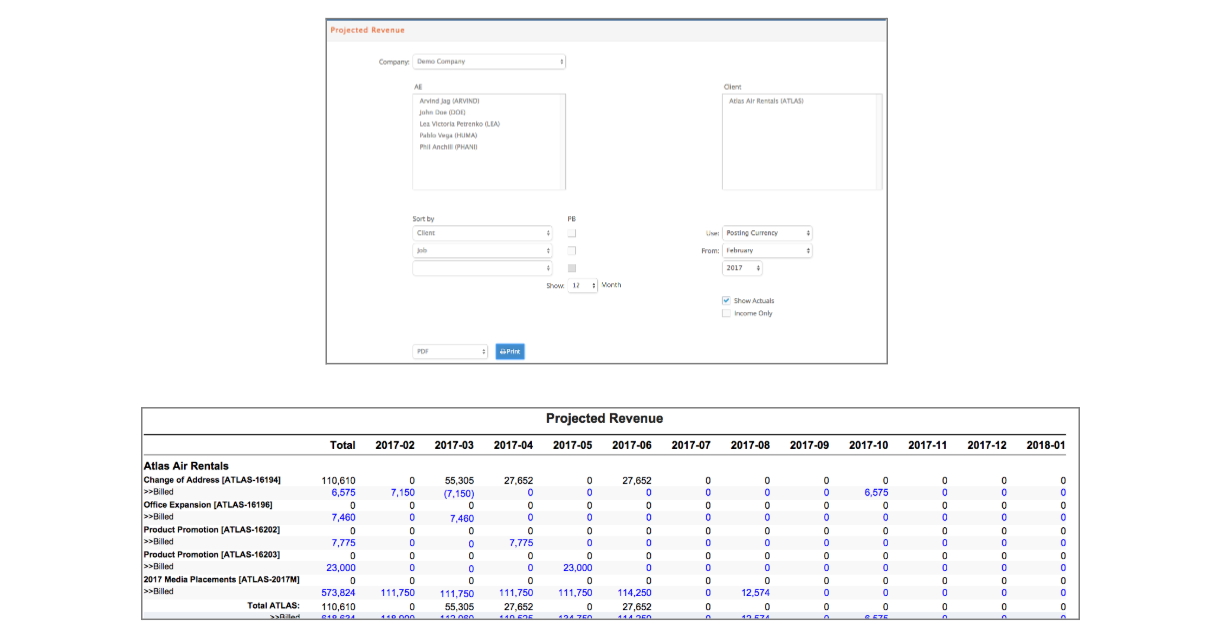
The purpose of this window is twofold: you can view, in the aggregate, the projected revenue schedule for a particular period of time, and/or you can view the same data with a comparison to actual billing.
Selection options include projects for a range of Account Executives and/or Clients. You can define up to 12 months to view, and your selection can cross calendar years. Sorting options include: client, Account Executive, job #, and type of job.
Lastly, the data presented can be solely the projected revenue schedule, compared to billings, or compared to net billings (income only).
Profitability
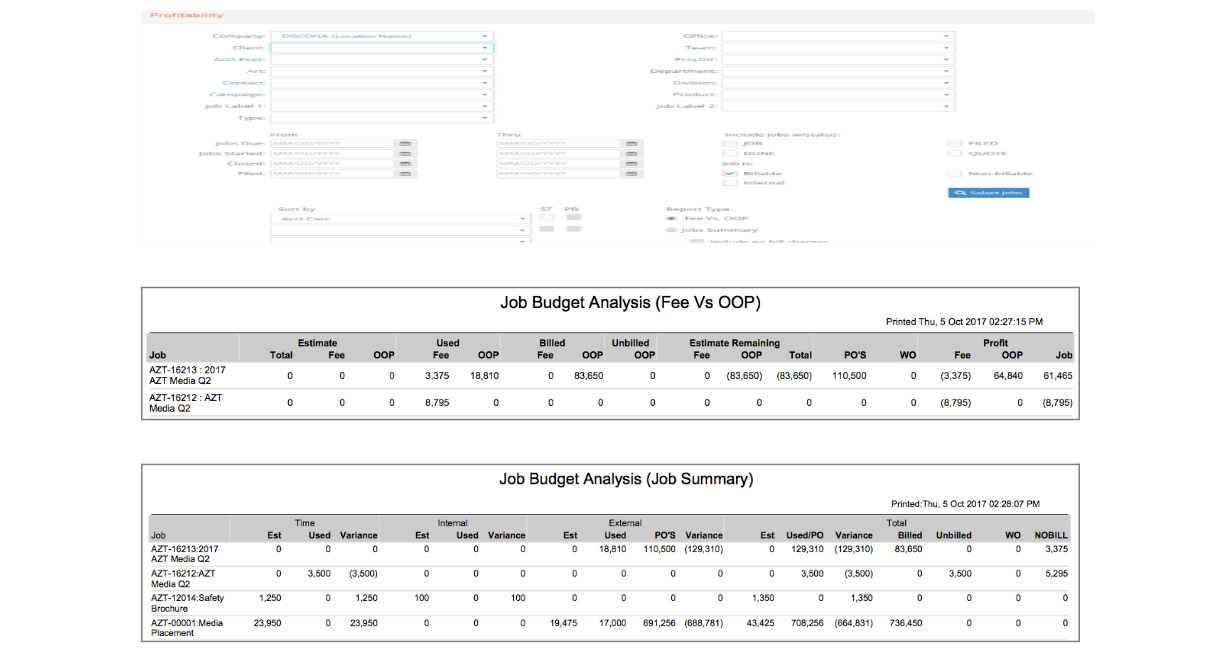
This reporting window provides two views of the project's financial performance. They are: Comparison to Project Budget/Estimate and Comparison to what has been billed vs. what charges have been applied. This lists profitability by Job and is available in two formats, Fee vs. Out of Pockets and Jobs Summary. Under Jobs > Reports (Financials), click Profitability.
This window has an extensive list of selection options. We recommend you review them, as you can be very selective about what you are reporting.
Budget Variance
This window has many similarities to the prior Profitability Reporting window. However, in this window, you can select to report on specific fiscal periods of charges and of billings!
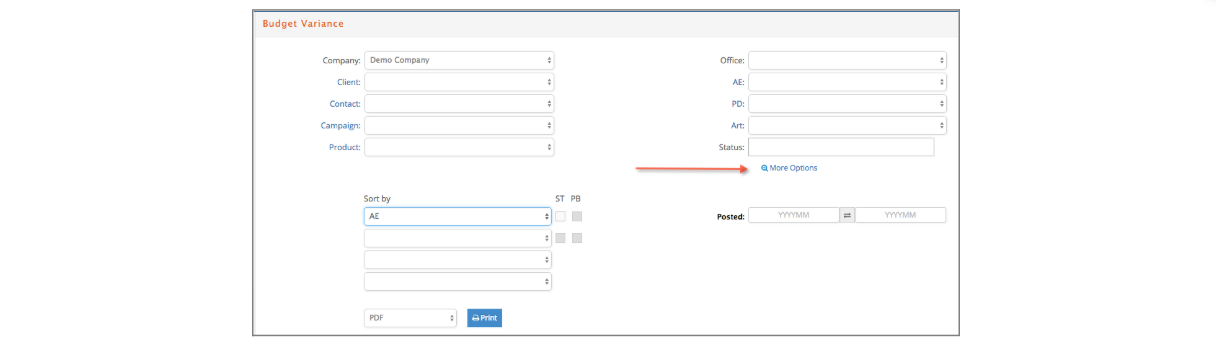
This window and reporting capability have two interesting features. They are:
- More/Less options: When the window is opened, it is presented with the more commonly used filtering features. Click More Options, and additional choices are presented.
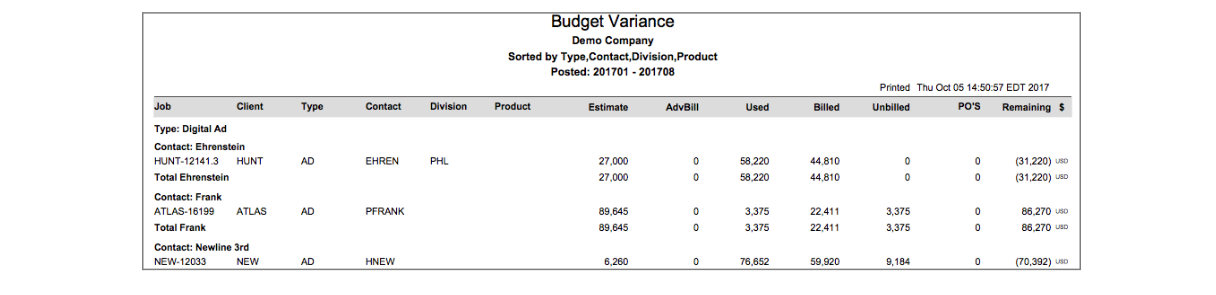
- Sorting. Since the report itself cannot display 11 sort options, we have set some restrictions. Client and Job# are always printed on the report. However, any of the remaining nine is only printed if it is selected as a sort requirement. For example, client contact will print if it is included in the sort list. If it is not, it will not print. We invite you to experiment with the new display capability based on the sort list.
Management Income Statement
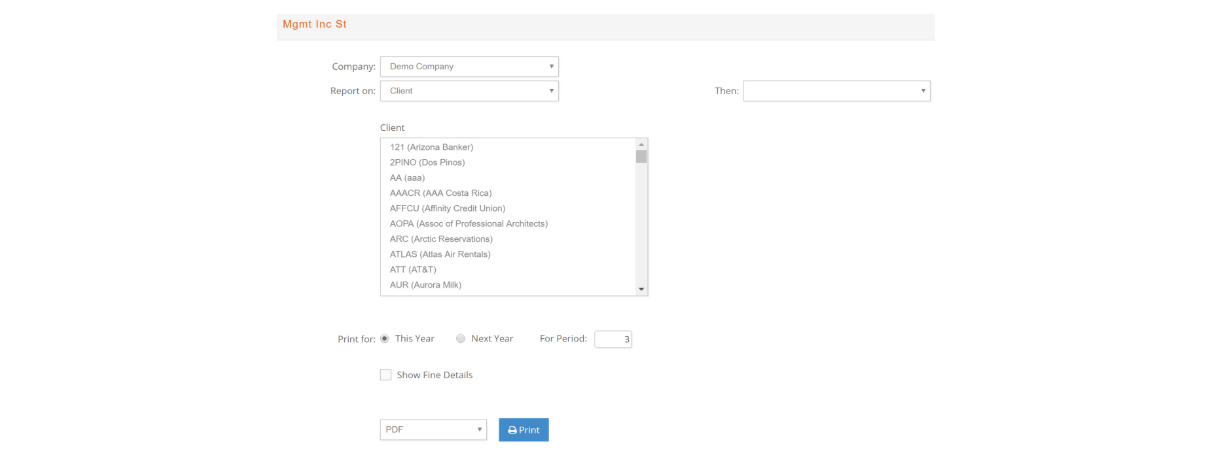
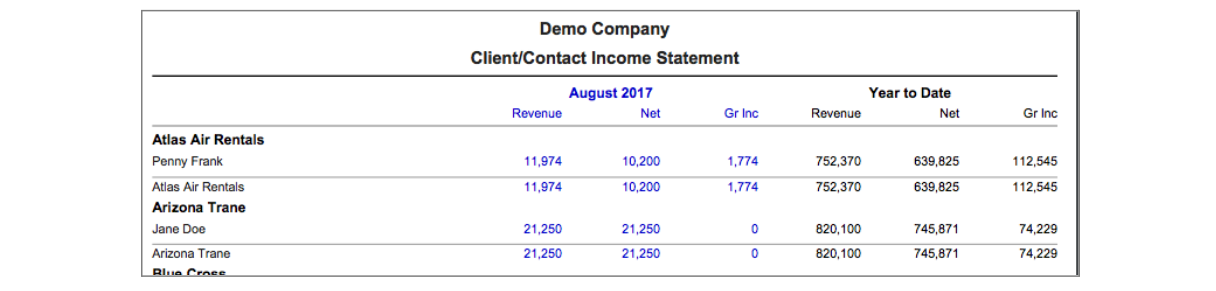
This reporting option, under Jobs > Reports (Financials) > Mgmt Inc St., is the Client Profit & Loss (P&L) for a fiscal period. It presents for the month and YTD, the billings, costs and Gross Income. There are more than 21 different presentations of information.
When you select an option from the 'Report on' drop-down list, you can also further segment by selecting an option from the 'Then' drop-down list. For example, if you select Client from the left list, you can also select contact, division, office, job type, or job from the second list.

Client Forecast
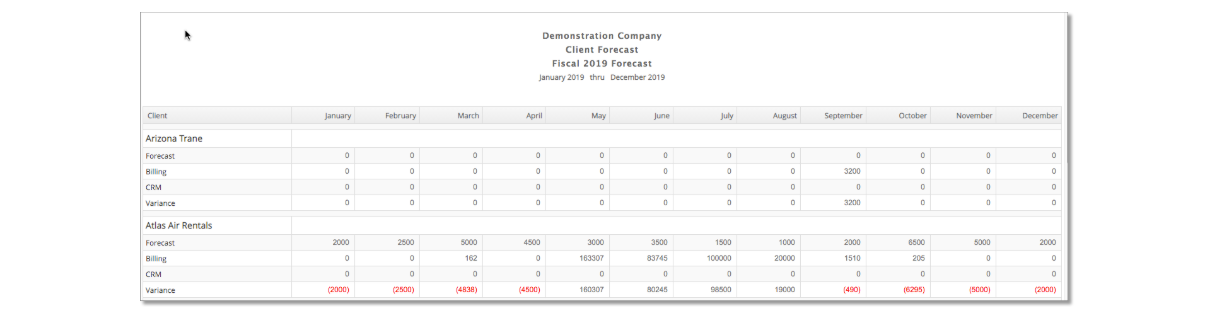
The Client Forecast report allows you to forecast projected client billings against actual client billings on a month-to-month basis throughout a given fiscal year.
Setup
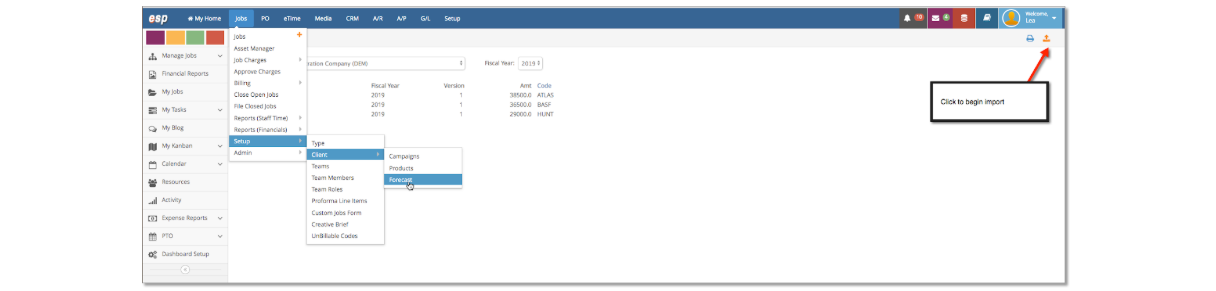
First, you must set up your Client Forecast by importing the forecast via a pre-formatted .txt file. Go to Jobs > Setup > Clients > Forecast and click on the Orange upload in the top right of the window.
Next,
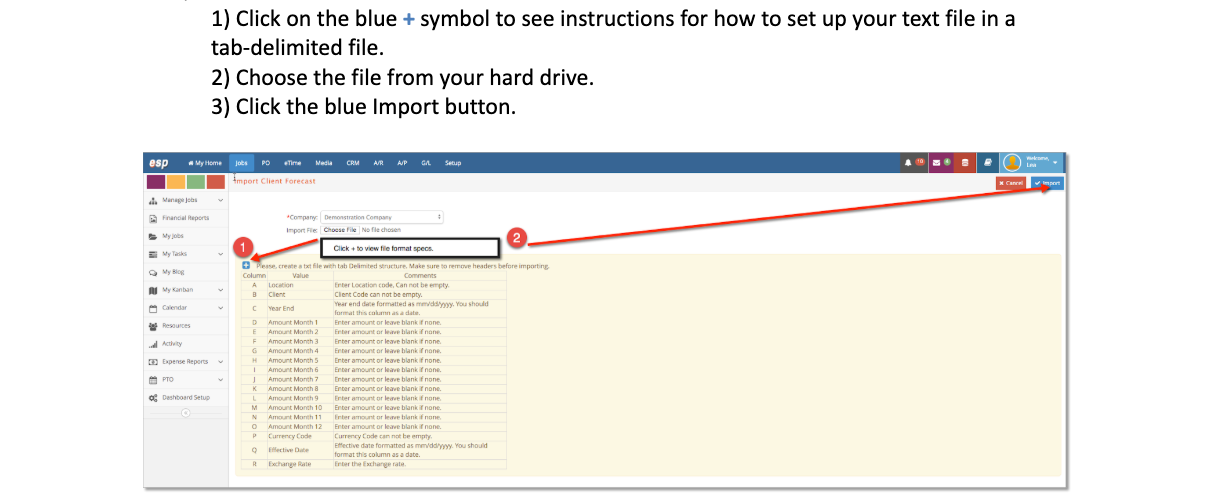
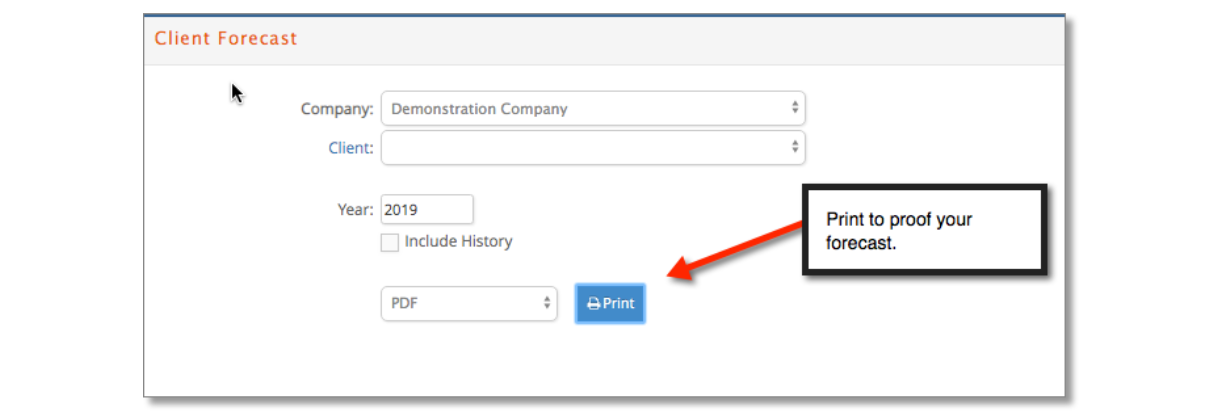
After importing, you may want to proofread the forecast to make sure the correct information was imported. Go to Jobs > Setup > Clients > Forecast and click the blue print icon.

Reporting
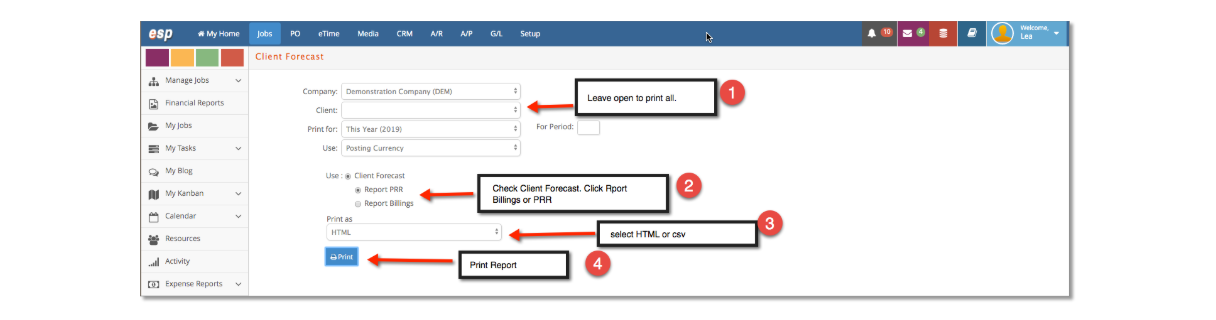
Now that your forecast is in the system, you can print a comparison of Forecasts vs. Actuals. A forecast comparison report can come from several areas in e-silentpartner. 1) The Client Forecast under Jobs > Setup > Client > Forecast, or 2) At the job level - defined under Job # > Financials > PRR. 3) From jobs set up as ‘CRM Jobs’ under Job # > Financials > Parameters.
To pull reports, go to Jobs > Reports (Financials) Client Forecast and make your report selections.
Job Forecast
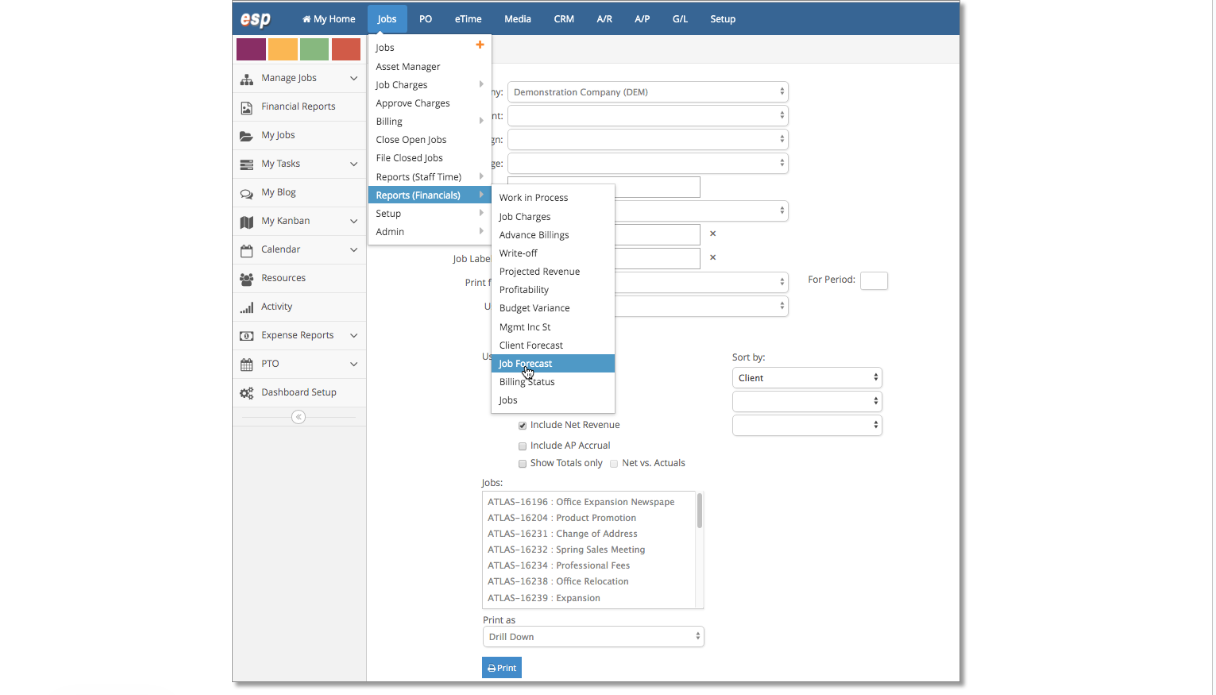
The Jobs forecast provides financial analysis from an ASC 606 perspective (revenue recognition from contracts). Please see our Billing Manual to learn how to use this feature. To access this reporting palette, visit Jobs > Reports (Financial) > Job Forecast.
Billing Status
The Billing Status report is a pre-billing snapshot of what will be billed. The filtering and sort options are extensive. Under Jobs > Reports (Financials), click Billing Status.
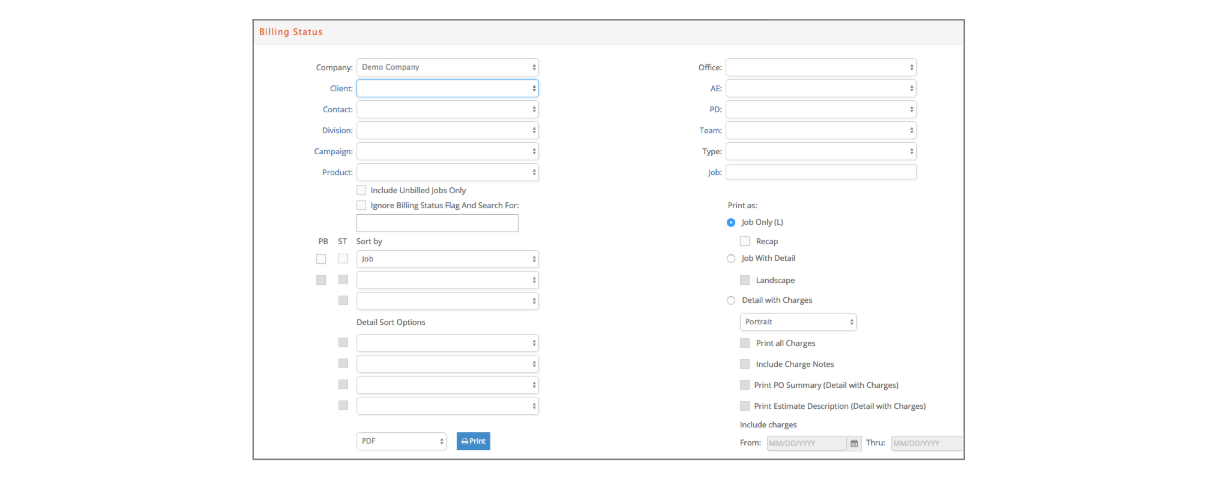
A description of some of the options in this is discussed in the following:
- Selecting Include Unbilled Jobs will only display Jobs with an unbilled balance.
- Updating the Job cutoff date will put all charges entered after running the billing status report on hold.
- Print PO summary (available only for the detail with charges format) will print a list of open purchase orders for each Job.
- Ignoring the billing status flag will include Jobs where a user has unchecked, including on billing status for the Job.
- Include charges through a specified date can be selected. It can also be run for a selected project status.
- Sort by options include Job, Account Executive, Client Code, Contact, Division, Team, Project Director, Campaign, Product, Type, Company, Office, Item Code, Category, Group, Resource, and Charge Date.
Print As options:
Job Only format displays one line per Job, including team, client, division, contact, Job number, Job title, estimate, billed, unbilled, open PO amount, and remaining, which is a calculation of estimate minus billed, unbilled, and open POs.
Job with Detail format displays Job number, status, company, division, team, client job, Job title, client, contact, account executive, project director, client PO, last invoiced date, vouchered (unposted AP vendor invoices) amount, hold (charges with a status of hold) amount, advance billed, currency and type for the Job. Items are subtotaled by group and category, including item description, estimate, net, billed, unbilled, open PO amount, and balance.
Job with Detail Sort by Item Only format displays Job number, status, company, division, team, client Job, Job title, client, contact, account executive, project director, client PO, last invoiced date, vouchered (unposted AP vendor invoices) amount, hold (charges with a status of hold) amount, advance billed, currency and type for the Job and one line per item including item description, estimate, net, billed, unbilled, open PO amount and balance.
Detail with Charges format displays Job number, status, start date, company, division, client Job, Job title, client, contact, account executive, project director, client PO, last invoiced date, vouchered, hold, advance billed, currency, and type. Items are listed with detail on charges with a status of HOLD or BILL by category and group, including invoice number, charges date, quantity, status of charge, PO amount, estimate, billed, remaining, net, gross, and current.
Detail with Charges Print all Charges format displays Job number, status, start date, company, division, client Job, Job title, client, contact, account executive, project director, client PO, last invoiced date, vouchered, hold, advance billed, currency, and type. Items are listed by category and group, including invoice number, charges date, quantity, status of charge (includes detail on all charges whether BILL, NOBILL, HOLD, DRAFT, BILLED), PO amount, estimate, billed, remaining, net, gross, and current.
Detail with Charges Sort by Item Only format displays Job number, status, start date, company, division, client Job, Job title, client, contact, account executive, project director, client PO, last invoiced date, vouchered, hold, advance billed, currency, and type. Charges are subtotaled by item, including invoice number, charge date, quantity, status of charge, PO amount, estimate, billed, remaining, net, gross, and current.
Jobs
Under Jobs > Report (Financials) > Jobs, select the desired option from the “Print As” drop-down list. Detail, Summarized, Quote List, and Reference reports selection window:
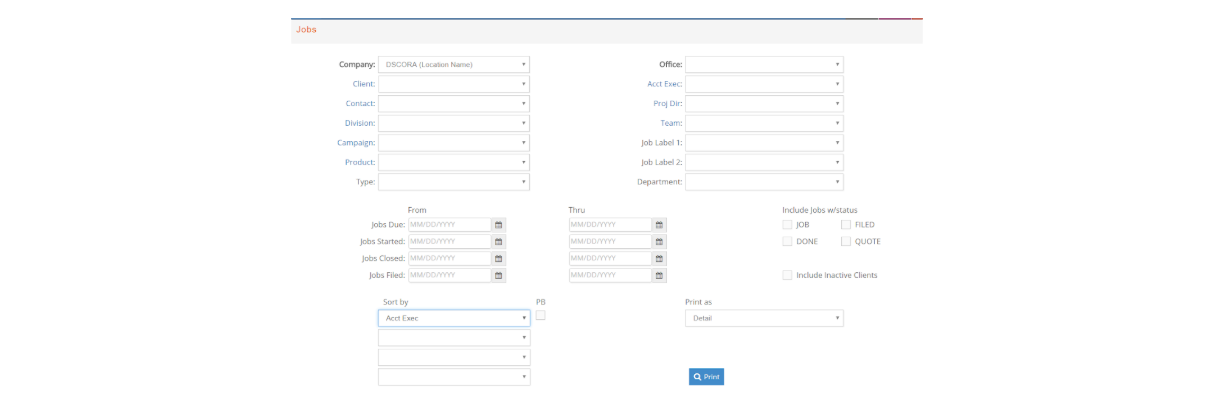
Print As options include:
Detailed format of the Jobs report gives a list of Jobs that meet the search criteria entered in the selection window, including Job number, client, contact, Job title, account executive, and project director assigned to the Job, due date, and start date.
Summarized format of the Jobs report gives a list of Jobs that meet the search criteria entered in the selection window including Job number, due date, Job date, client, project director, division, contact, Job title, type, Job label 1, Job label 2, Job label 5, Job label 6, Job label 4, team, product and company.
Quote List format of the Jobs report gives a list of Jobs that meet the search criteria entered in the selection window, including Job number, status, client, contact, Job title, estimate date, and estimate amount. Estimate date is the date the estimate was approved as the master estimate. Estimate is the amount of the approved master estimate on the Job. Jobs with zero estimate amounts could have estimates that have not been approved.
Reference format of the Jobs report gives a list of Jobs that meet the search criteria entered in the selection window, including Job number, status, due date, Job date, client, contact, division, Job title, account exec, team, type, and company.